
Jira and ClickUp
A comment can become a Jira issue or a ClickUp task from its thread. When the issue is done, the comment resolves itself.
Jira ClickUp
The issue carries what a developer needs without opening anything else: the comment and its replies, who wrote it and when, the page, the element it is pinned to, the layer, a link that opens the page with the comment showing, and the picture taken of the page, in the description.
Part of the Pro plan. Your own plan decides: each person connects their own account and sends as themselves.
Connecting
- Open Integrations in the dashboard and choose Connect Jira or Connect ClickUp.
- Sign in there and allow SharedLayers. Jira asks once for every site your account can reach; ClickUp asks which workspaces to allow.
- You come back to Integrations, which shows the connected account and its sites or workspaces.
Your Jira or ClickUp sign-in stays on our server, encrypted, and is used only to list your projects and lists, create what you send, and check whether it is done. Disconnecting removes it. Issues already sent stay where they are.
Sending a comment
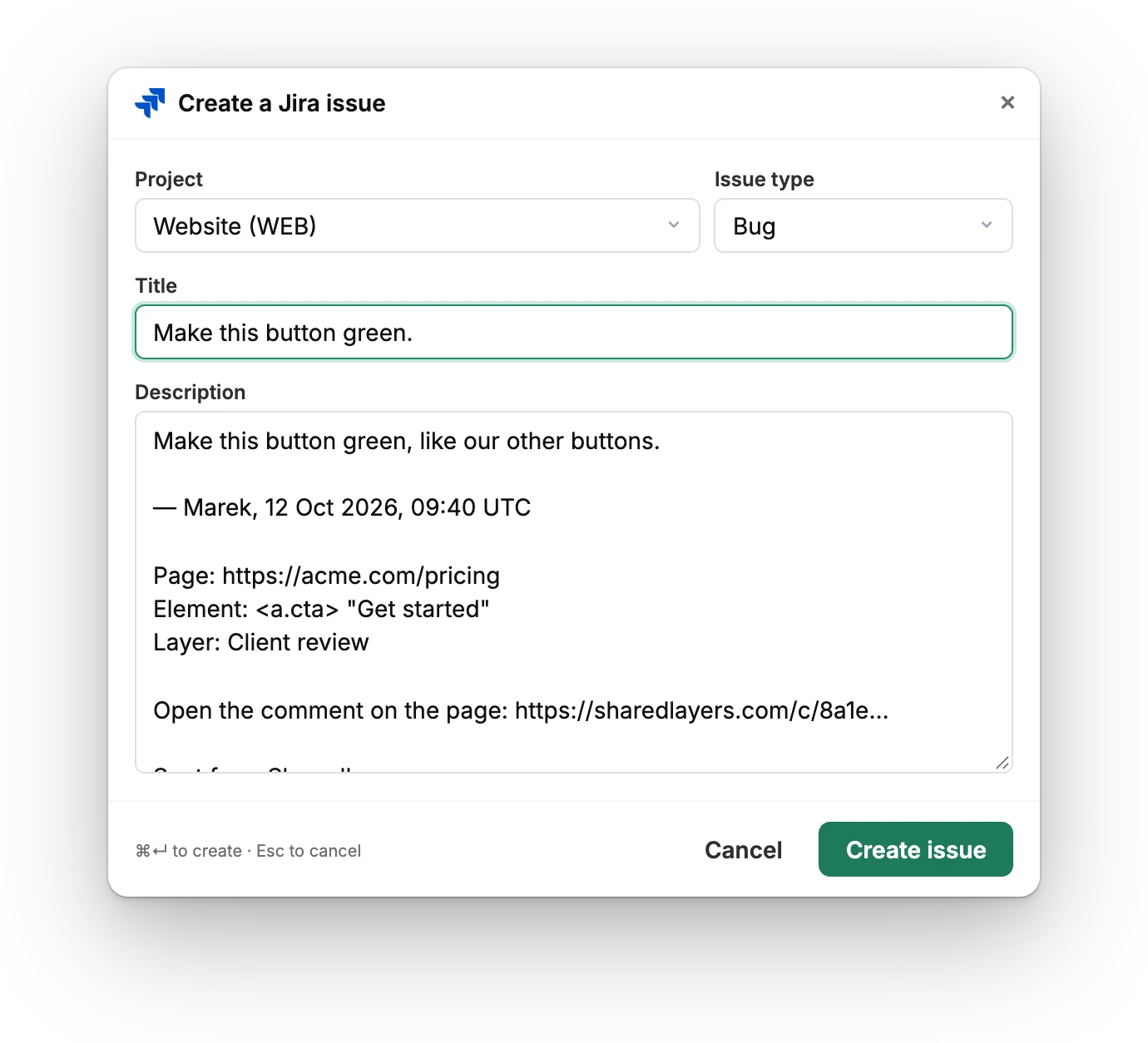
- Open the comment's thread, in the extension or on a site with the script.
- Press the Jira or ClickUp logo at the top of the thread. It is there once that tool is connected.
- In the window that opens, choose the Jira project and issue type, or the ClickUp list. The title starts as the comment's first line and the description is written out from the comment, its replies, the page and the element; change either as you like. The page picture goes in the description unless you untick it.
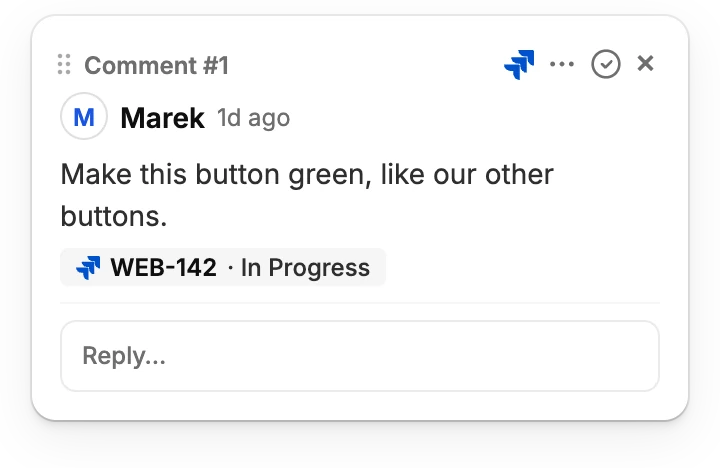
- Press Create issue (or Create task). The thread shows the issue's key and status, for everyone on the layer, as a link that opens it.
Next time, the box starts with the project, issue type or list you last sent that layer's comments to. A comment's type sets the priority where the project has one: critical is Highest (Urgent in ClickUp), warning is High, minor is Low.
When the work is done
Every few minutes SharedLayers asks Jira and ClickUp about the issues sent from comments that are still open. When one is done (in Jira, any status in the Done category; in ClickUp, a closed or done status), its comment is resolved in the name of whoever sent it, with a reply such as "✅ WEB-142 is done in Jira (Done)." marked "via Jira". This happens once: a comment you reopen afterwards stays open. The issue's status under the comment follows Jira or ClickUp until then.
If something does not work
| What you see | What to do |
|---|---|
| There is no Jira or ClickUp logo in the thread | Connect the tool on Integrations first, signed in with an account (not as a guest) on Pro. Then open the thread again. |
| "… no longer accepts the connection" | The app was removed on the Jira or ClickUp side, or a Jira connection went unused for ninety days. Choose Connect again on Integrations. |
| A project or list is missing | Only those you can create issues or tasks in are listed. For a Jira site added after you connected, connect again so Atlassian includes it. |
| Jira refuses the issue and names a field | That project requires a field SharedLayers does not fill in. Send to another issue type or project, or make the field optional in Jira. |
| "Created … without the picture" | The issue was created, but the picture could not be put in its description. It may still be attached; the link back opens the comment, picture included. |