
Comments and pins
A comment is pinned to the element it is about, not to a spot on the screen, so it stays on that button or heading when the layout changes. It works the same in the extension and on a site with the script.
Leaving a comment
- Press Comment in the toolbar, or Alt+C (⌥C on a Mac).
- Move over the page. The element under the pointer is outlined and named, so you can see what the comment will be pinned to.
- Click it, write, and send it with the button in the box, or Ctrl+Enter (⌘↵ on a Mac).
A guest is asked for a name the first time; see Layers and people. Esc, or Alt+C again, stops without leaving one. What you typed is kept for the tab if the box closes by accident.
Menus, tooltips and hover states can be commented on. While you place a comment the page does not hear your clicks, so an open menu stays open, and moving the pointer still opens things that open on hover.
The picture of the page
Each comment keeps a picture of what its writer was looking at, with the element outlined and the pin on it. Anyone reading the comment later can open it, which is what keeps “this button is misaligned” making sense after the page has changed. On a site with the script, the developer can turn pictures off; see data-snapshots.
The thread
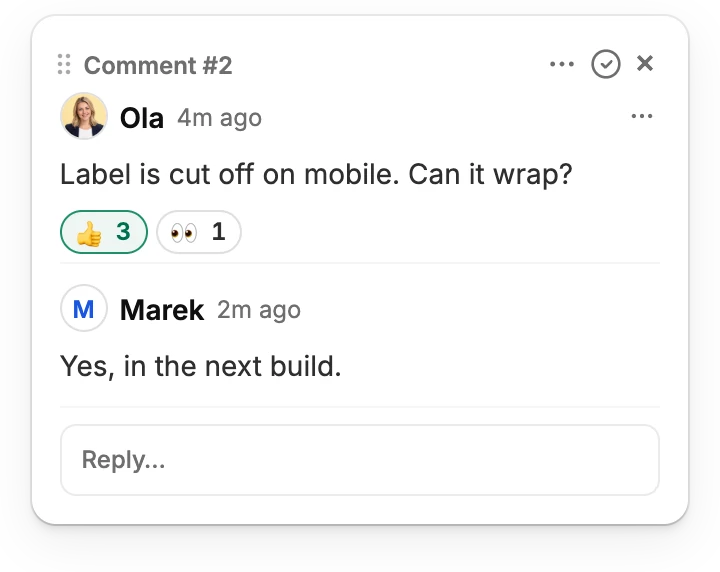
Clicking a pin opens its thread. In it you can:
- Reply, and react with an emoji to the comment or a reply.
- Mention someone with @: the people on the layer are offered. They are told by email or Slack.
- Resolve it with the tick at the top once it is dealt with, and reopen it the same way. Anyone signed in may resolve, which is the one change a non-author can make.
- Edit or delete what you wrote, from the ⋯ beside your name. Deleting a comment deletes its replies too.
- Copy its link from the ⋯ menu at the top of the thread. The link opens the page with this comment showing. See Comment links.
- Send it to Jira or ClickUp, once you have connected one.
A thread's window, and the box for a new comment, can be dragged by the dots at its top left when it is in the way. The pin stays where it is.
Attaching images
A comment or a reply can carry up to four images: a mockup of what is wanted, a screenshot from another device, a photo of a printout. Paste one into the box, drop it onto the box, or pick it with the image button under the box. Anyone who can write a comment can attach images, guests included, and the author can take images out or add new ones when editing.
- Each image is shrunk in the browser to at most 2560 px on its longest side and saved as WebP (JPEG where the browser cannot write WebP), so the original file is never uploaded, and neither is the location a phone writes into a photo.
- They are shown under the comment or reply, and open large in the same viewer as the page picture.
- They are stored with the comment and shown only through short-lived signed links to people who can see it. Deleting the comment or the reply deletes its images.
- Comment emails and CSV and PDF exports say how many images came with a comment or reply; the images themselves stay in SharedLayers.
Improve
Under the comment and reply boxes, Improve rewrites what you typed so it reads clearly, keeping what you meant and the people you mentioned. Undo brings your own words back. It is part of the Pro plan, and your own plan decides, whoever's layer it is. It is not shown to guests.
Moving a pin
The author of a comment can drag its pin onto a different element. Where it is dropped is pinned exactly as the first placement was, outline and all. For everybody else a pin only opens its thread. Esc during the drag puts it back, and so does Undo on the confirmation. How pins find their element again after the page changes is under How pins anchor.
The side panel
The side panel button in the toolbar, or Alt+P, opens every comment on the layer as a list, newest first, with replies folded under each. Where the window has room it opens beside the page, which moves over to make space; otherwise it opens over it.
- Pointing at a comment lights up its pin; clicking it scrolls to the pin and opens the thread, on another page too.
- The filter menu has Show resolved, Only your threads, Only unread, Only current page and Only detached (comments whose element is no longer on the page). Audit layers add a chip for each type.
- Resolved comments are hidden until you choose Show resolved. When every comment is resolved, the list says so and offers to show them.
- Your filters are remembered for each site while you are signed in.